Setup Nginx in Ubuntu 24.04 LTS VPS Server

Setup Nginx in Ubuntu 24.04 LTS VPS Server
In this guide, I am going to show you how you can setup NGINX - a reverse proxy in your VPS Server
What is NGINX and why should one use it ?
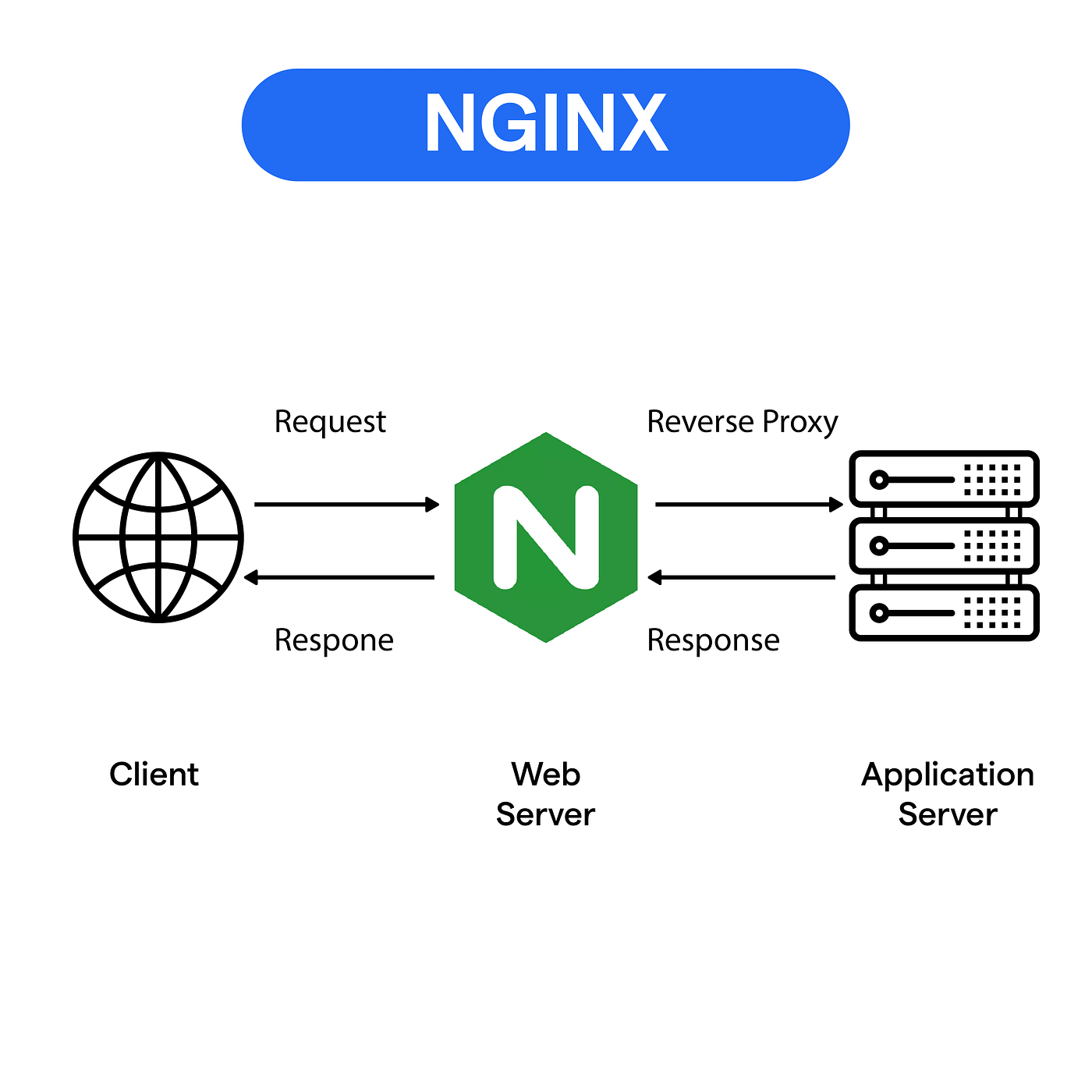
In your VPS Server, Login as root user, so to install NGINX in to the Server, let me show you how to do that in easy to follow method.
- Update your package list and install NGINX using the APT package manager. Run these commands as root or with sudo privileges.
sudo apt update
sudo apt install nginx -y
- Start the service and enable it run on boot:
sudo systemctl start nginx
sudo systemctl enable nginx
- Check the status to confirm its active.
sudo systemctl status nginx
- Enable firewall ports :
For security reasons, we should always only allow the ports that is required to be exposed to publc or outside the host server.
sudo apt install ufw -y

sudo ufw allow 80
sudo ufw allow 443
sudo ufw reload
Adjust your firewall to allow Nginx traffic, assuming UFW is enabled.
sudo ufw allow OpenSSH
sudo ufw allow 'Nginx Full'
sudo ufw reload
Install Fail2Ban for brute-force protection:
sudo apt install fail2ban -y
sudo systemctl enable fail2ban
Configure jails in /etc/fail2ban/jail.local for SSH and Nginx (Eg. ban after 5 fails).
Run Nginx as non-root
Ensure Nginx runs as www-data (default)
Tighten permissions:
sudo chown -R root:root /etc/nginx
sudo chown -R 750 /etc/nginx
sudo chmode 640 /etc/nginx/nginx.conf
- Testing
Default virtual host page is placed in /var/www/html/ location. You can place your static pages here,
or use virtual host and place it other location.
Virtual Host is a way to host multiple domains on the same server.
Let's create a simple HTML Page in /var/www/example.com/ ( it can be anything you want).
Create index.html file in this location.
cd /var/www
sudo mkdir example.com
cd example.com
touch index.html
nano index.html
Paste the following to the index.html file
<!doctype html>
<html>
<head>
    <meta charset="utf-8">
    <title>Hello, Nginx!</title>
</head>
<body>
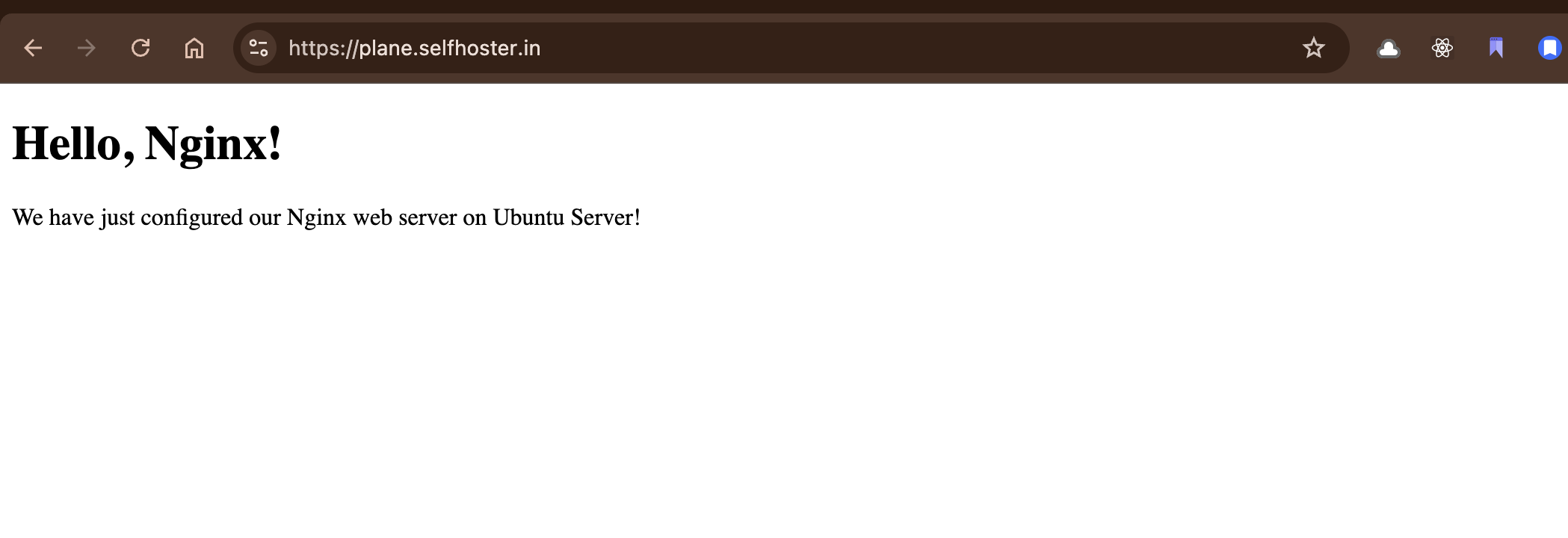
    <h1>Hello, Nginx!</h1>
    <p>We have just configured our Nginx web server on Ubuntu Server!</p>
</body>
</html>
Save this file, In next step we are going to setup virtual host to make Nginx use pages from this location.
4. Setting up virtual host
To setup virtual host, we need to create file in /etc/nginx/sites-available/ directory and enable it.
Create a new server block configuration file:
sudo nano /etc/nginx/sites-available/example.com
This command opens the default configuration file for editing.
Configuration template for example.com
server {
       listen 80;
       listen [::]:80;

       server_name example.com;

       root /var/www/example.com;
       index index.html;

       location / {
          try_files $uri $uri/ =404;
       }
}


// if subdomain (subdomain.yourdomain.com)
server {
       listen 80;
       listen [::]:80;

       server_name tutorials.example.com;

       root /var/www/tutorial.example.com;
       index index.html;

       location / {
           try_files $uri $uri/ =404;
       }
}
eg. for localhost
server {
  listen 80;  # Listen on port 80, the default HTTP port
  server_name localhost;  # The server name, here it is set to localhost

  root /var/www/html;  # The root directory where files are served from
  index index.html index.htm;  # The default files to serve

  location / {
    try_files $uri $uri/ =404;  # Try to serve the requested URI, if not found return a 404
  }
}
If /var/www/htmlis not present:
Change ownership of the document root directory to the current user
sudo chown -R $USER:$USER /var/www/html
set the permissions for the document root directory
sudo chmod -R 755 /var/www/html
root is a directory where we have placed our .html file. index is used to specify file available
when visiting root directory of site. server_name can be anything you want, because you aren't
pointing it to any real domain by now.
5. Activating virtual host and testing results
Enable the site, test and reload nginx.
We need to symlink the tutorial to sites-enabled
sudo ln -s /etc/nginx/sites-available/tutorial /etc/nginx/sites-enabled/
Test the configuration
sudo nginx -t
Reload nginx
sudo systemctl reload nginx
Congratulations ! Everything works as it should. We have just configured Nginx web server.
Verify by visiting your VPS IP in a browser; you should see the Nginx welcome page.
6. Setting up SSL using Certbot:
This guide ensures that your Nginx server is secured with SSL, making your site accessible over HTTPs. HTTPs
We can create a SSL certificate using letsencrypt for free and use this certificate using nginx.
Replace example.com with your domain :
sudo apt install certbot python3-certbot-nginx -y
sudo certbot --nginx -d example.com
Certbot will:
- Add SSL
- Redirect HTTP -> HTTPS
- Auto-renew certs
This auto-configures HTTPS redirects and renewals (test with sudo certbot renew --dry-run)
sudo certbot renew --dry-run
To renew the certificate, run
sudo certbot renew
7. Create an A Record in your Domain Registrar
Setup Domain A Record
In your domain service, to create a new domain that points to your VPS Server
Login to your domain registrar and create an A record pointing to the IP address of your server.
- Record Type: A
- Name:
test.example.comorexample.com - Value: IPv4 address of the hosting server
Note: Its always a good idea to create a elastic/static IP for your server. This will make sure that your IP address doesn't change on restart or reboot.
Once you have setup the A record, it will take 24-42 hours for DNS propogaton, so next time when you hit test.example.com -> it will hit -> your VPS server
Obtain an SSL certificate
Run Certbot to obtain an SSL certificate for your domain or subdomain
sudo certbot --nginx -d example.com
sudo certbot --nginx -d test.example.com
Follow the prompts:
-
Enter the email address associated with your domain registrar account.
-
Accept the terms of service.
-
Press Enter to continue.
Certbot will automatically configure your Nginx to use the new certificate. You should see a message indicating that the certificate was successfully issued.
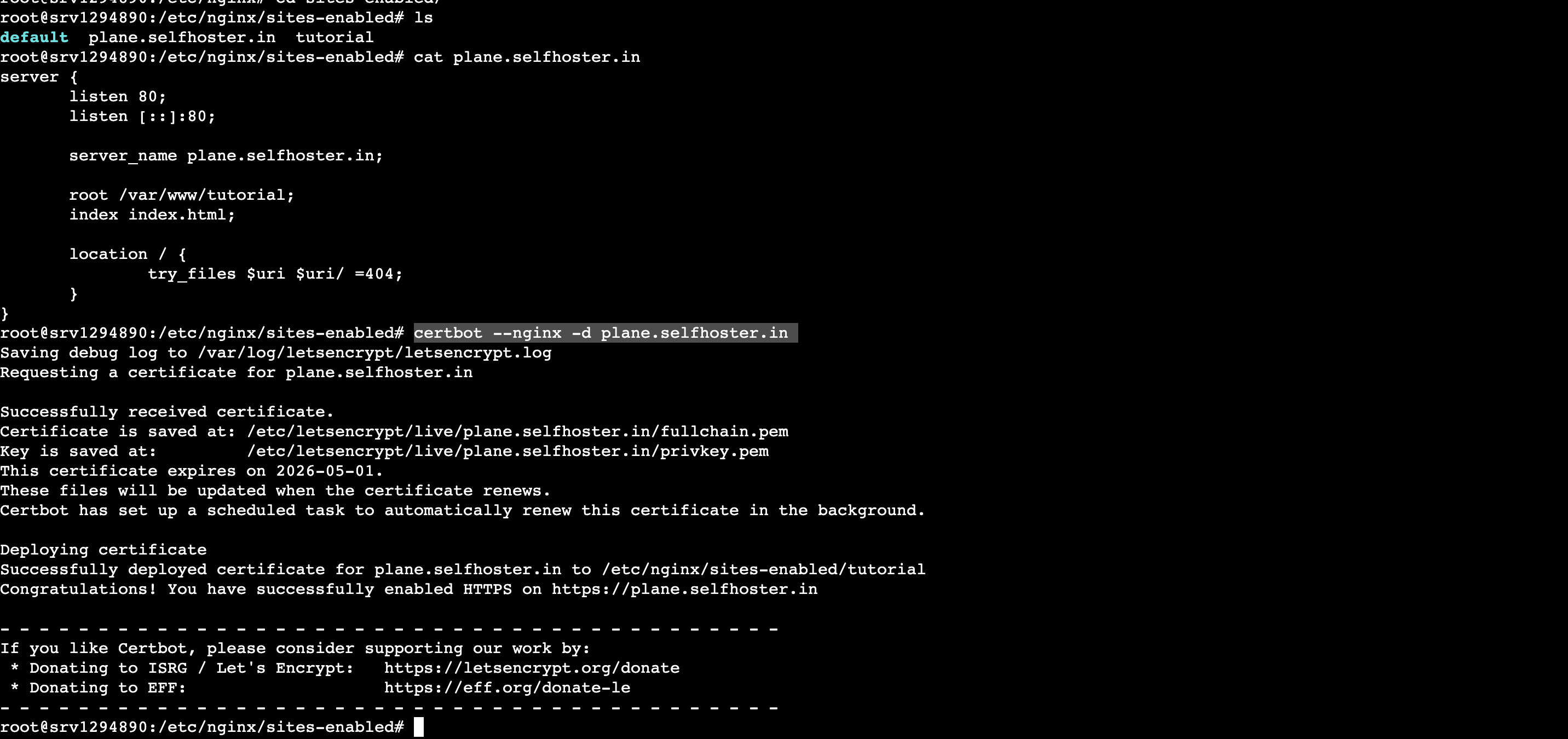
✅ Final HTTPS Nginx Config (Result)
After Certbot, your config will look like:
# for https
server {
    listen 443 ssl;
    server_name example.com;

    ssl_certificate /etc/letsencrypt/live/example.com/fullchain.pem;
    ssl_certificate_key /etc/letsencrypt/live/example.com/privkey.pem;


    root /var/www/example.com;
    index index.html;

    location / {
        try_files $uri $uri/ =404;
     }
}

# for http
server {
    listen 80;
    server_name example.com;

    root /var/www/example.com;
    index index.html;

    location / {
        try_files $uri $uri/ =404;
     }
}
For subdomain with ssl
# for http:
server {

    listen 80;
    server_name test.example.com;

    root /var/www/test.example.com;
    index index.html;

    location / {
        try_files $uri $uri/ =404;
    }
}

# for https:
server {

   listen 443 ssl http2;
   server_name test.example.com;

   # SSL config (Certbot managed)
   ssl_certificate /etc/letsencrypt/live/test.example.com/fullchain.pem;
   ssl_certificate_key /etc/letsencrypt/live/test.example.com/privkey.pem;

   root /var/www/test.example.com;
   index index.html;

}
Once you update the virtual hosts config, be sure to restart nginx for the changes to take place:
sudo systemctl restart nginx

# or

sudo service nginx reload
sudo service nginx restart
Now if you visit https://example.com or https://test.example.com you will be able to see the Welcome to Nginx page.